
GUIDE · Sep 12, 2026
My console turns on but shows no picture
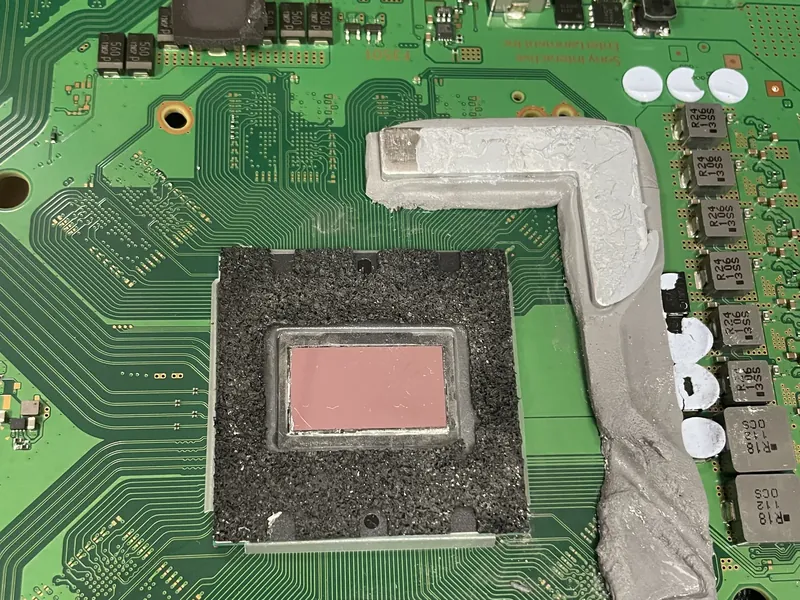
A console that powers on but leaves the TV black is one of the most common faults we see. Often the cause is a setting, a cable or the TV itself, and you can rule those out at home. When it isn’t, the usual suspects are the HDMI port and the small chips right behind it. Here’s what to try first, what fails on the board and what the repair costs.
First, pin down what “no picture” means
- Does it stay on? A steady light and running fans mean it’s powering up. If it shuts off after a few seconds, or a PS5 pulses blue and turns off, it’s usually a power or boot fault, not a video fault.
- What does the TV say? “No signal” means the TV gets nothing on that input. A picture that flickers or cuts out when you touch the cable points to the connection.
- On a Switch: if handheld mode works and only the TV stays black, suspect the dock, its cable or adapter, or the console’s USB-C port.
Checks to try before you ship it
- Input and TV port. Select the correct HDMI input, then try another port and, if you can, another TV or monitor. Some TVs only accept 4K or 120 Hz on certain ports, or with an “enhanced HDMI” setting turned on.
- Cable and anything in between. Use the original cable or another one you know works, and connect straight to the TV: soundbars, receivers, HDMI switches and capture cards can all drop the signal.
- A full power cycle. Turn the console off completely (not rest mode) and unplug it from the wall for a full minute.
- Low-resolution mode. If the TV can’t show what the console sends, the screen stays black even though nothing is broken.
- PS5 and PS4: with the console off, hold the power button until the second beep, about seven seconds. Connect the controller by USB, press PS and, in Safe Mode, choose Change Video Output (PS5) or Change Resolution (PS4). If Safe Mode shows on screen, the HDMI port is very likely fine.
- Xbox Series X|S and Xbox One: with the console off, hold the power and eject buttons until the second beep, about ten seconds later (Microsoft’s support site covers models without a disc drive). It starts at a resolution almost any TV can show.
- Switch: with the original dock and adapter, connect the adapter first, then HDMI, then dock the console. In System Settings, set the TV resolution to 720p or Automatic.
- Look at the port, gently. With a flashlight, look for bent pins, a cracked plastic tongue, a crooked port or burn marks. Don’t straighten pins or force the cable. If the plug feels loose, stop using that port: a bent pin can short against its neighbor and damage the chip behind it.
A picture in Safe Mode or low resolution means the hardware is probably fine and the fix is in the settings. Black on every TV and cable means the fault is almost certainly inside the console.
What usually fails on the board
The HDMI port
The port is the weakest point. A yanked cable, or a console carried with the cable plugged in, bends pins, cracks the tongue or breaks the solder joints that hold it to the board. The repair: remove the old port with controlled heat, clean the pads, solder a new one and check every pin. Torn pads mean rebuilding traces with jumper wires under the microscope, which is why a port someone already tried to fix costs more.
The HDMI chip and its protection parts
Between the processor and the port sit a small chip that drives the HDMI signal (an encoder or a retimer, depending on the model) and tiny protection diodes and filters. A port that shorts two pins, or a surge through the TV, can kill them along with the port or on their own. A new port won’t help if that chip is dead, so the diagnosis checks the whole signal path.
The Switch’s USB-C path
A Switch sends video to the dock through its USB-C port, backed by a power-delivery controller and a video switch chip (M92T36 and PI3USB30532). Third-party docks and chargers that break the USB-C power rules often damage them. The typical symptom: handheld mode works, the TV doesn’t, sometimes with charging problems too.
Less often, the processor, memory or storage is at fault. Those cases are diagnosed one by one, and some aren’t economical to repair.
What the repair costs
Typical ranges on our pricing page for the repairs that most often bring the picture back:
| Repair | Typical range |
|---|---|
| PS5 HDMI port | $79–$119 |
| Xbox Series X|S HDMI port | $79–$119 |
| PS4 HDMI port | $59–$79 |
| Switch USB-C port | $69–$109 |
The firm price comes in your quote after diagnosis, and nothing is repaired without your approval. If there’s damage beyond the port, the quote says so before any work starts. Boards another shop already worked on carry an extra $50. More on our console repair page.
- Diagnosis: free, with no bench fee. You pay only if you approve the repair.
- No fix, no fee: if it can’t be repaired, you pay nothing and we ship it back at our cost.
- Shipping and warranty: you pay to ship it to us, return shipping is included, and 90 days on parts and labor.
Before you send it
- Note in the request form what you tried (TVs, ports, cables, Safe Mode) and, for a Switch, which dock and adapter you use.
- Send the console only, without discs. Keep the cable, stand and controller unless we ask for them.
- Pack it in a rigid box with cushioning on every side and the printed intake ticket on top.
Frequently asked questions
Can I replace the HDMI port myself?
It’s possible with the right tools, but its fine pins sit on a multilayer board, and too much heat lifts pads or damages the chip beside it. A failed attempt usually turns a port swap into a costlier board repair.
Will I lose my games and saves?
A port or chip repair doesn’t normally touch the storage, but we can’t guarantee it in every case, so back up what you can.
What if my console can’t be repaired?
No fix, no fee: you pay nothing and we ship the console back at our cost.
Is the repair guaranteed?
Yes: 90 days on parts and labor. If the same fault returns or a part we installed fails, we fix it at no cost. New damage, drops or liquid after the repair aren’t covered.
Need your device checked?
Tell us the model and symptoms so we can help you with the next step.
Ask about a repair ↗